Can You Run Two LinkedIn Automation Tools on One Account?
Short answer: no. Why one LinkedIn profile should run one automation tool at a time, what goes wrong with two, and how to switch tools safely.
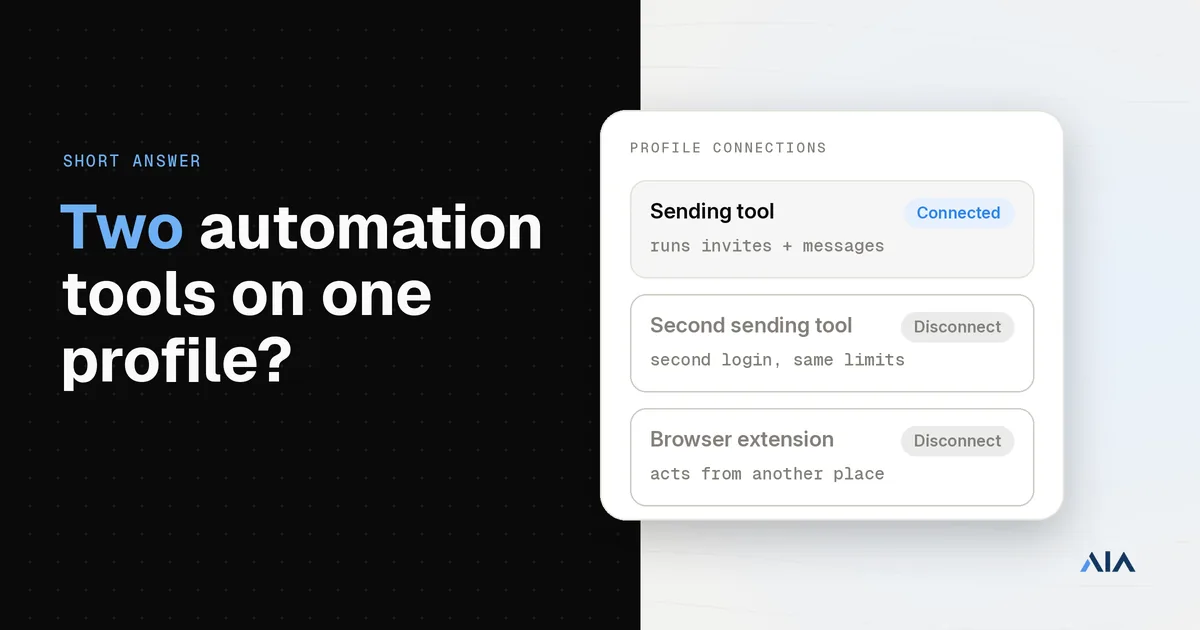
No, not at the same time. Each LinkedIn profile should be connected to one automation tool that does its sending. Two tools on one profile means two sets of logins, two schedules and two sets of daily limits acting on the same account, and LinkedIn sees all of it as one person behaving strangely. If you want to try a different tool, move the profile across cleanly instead of running both.
What Goes Wrong With Two Tools
The problems are practical, and most of them show up within days.
- Limits stack up. Each tool paces the profile as if no other tool were sending. Two careful schedules added together can be one aggressive one.
- Logins clash. Every tool keeps its own session and connects from its own setup. A profile that appears in two places at once, or flips between locations, looks like a shared or compromised account.
- Prospects get double messages. Neither tool knows what the other sent. The same person can receive two first messages, or a follow-up to a message they never got.
- Replies split. Conversations end up spread across two inboxes, and someone on your team answers late or not at all.
- Restrictions get harder to diagnose. If the profile is restricted, you cannot tell which tool’s behaviour caused it, so you cannot fix it.
One Tool, Two Tools, or a Clean Switch
| Setup | Risk | What to do |
|---|---|---|
| One sending tool per profile | Lowest | The standard setup. Keep it. |
| Two sending tools on one profile | High | Pick one and disconnect the other. |
| Sending tool plus a browser extension on the same profile | High | Remove the extension, or run it on a different profile. |
| Different tools on different profiles | Fine | Useful for testing tools side by side. |
| Switching from one tool to another | Low, if done in order | Stop and disconnect the old tool before connecting the new one. |
How to Switch Tools Safely
If you are moving a profile to a new tool, do it in order rather than overlapping.
- Pause the campaigns in the old tool and let any scheduled steps finish or cancel them.
- Export what you need, such as lead lists, campaign history and tags, so nothing is lost.
- Disconnect the profile from the old tool and log out of its session.
- Connect the new tool using the same proxy region the profile has always used, so its location stays consistent.
- Ramp up gently for the first days on the new tool instead of starting at full pace.
Every AIA plan includes free setup with an automation tool. Tell us which tool you want when you order, and if you change later, ask us before you connect the new one. Tool compatibility matters too: AIA profiles need a tool that lets you set your own proxy, and the AIA integrations page lists the ones that work. For a wider comparison, see LinkedIn automation tools for rented accounts.
If You Want to Test Two Tools
The clean way to compare tools is to give each one its own profiles. Run the same audience and the same copy on a few profiles per tool for a few weeks, then compare replies and stability. You learn more, and no single profile carries the risk. If you are running many profiles side by side, anti-detect browsers for multiple LinkedIn accounts covers how to keep each one separate.
FAQ
Can a data or scraping tool share a profile with my sending tool? It is still a second session acting on the account. If you need the data, pull it from a separate profile that does not send.
What about a browser extension for one small task? Extensions act through the same profile and usually from a different location than your cloud tool. Keep them off sending profiles.
I already ran two tools. Is the profile ruined? Not necessarily. Disconnect one tool now, keep the pace low for a while and watch for warnings.
Does this apply to X accounts too? Yes. One account, one tool doing the sending.
Not sure which tool to connect your profiles to? Message us on WhatsApp at wa.me/37256084933, or go to app.getaia.io to order profiles with setup included.